
Login to the Charles Sturt student portal to check your results, view your timetable, manage enrolment, pay fees, and access other student services. The Charles Sturt University portal brings these academic and administrative tools together in one personalized dashboard. To sign in, you need your Charles Sturt username and password.
New students must activate their account before they can access the portal and other university systems. The student portal is separate from Brightspace, which is used for subject content and learning materials, and InPlace, which is used for professional placements. This guide explains how to log in, what you can do in the portal, which system to use for different tasks, and where to get help if you have trouble accessing your account.
How to Access Your Charles Sturt Portal Account
The Charles Sturt University Portal is the dashboard you sign in to for enrolment details, results, fees and support access. It uses the same username and password as most other Charles Sturt systems, so once your account is active, getting in is quick.
Find the Official Charles Sturt Student Portal Sign-In Page
Sign in to the student portal through the Current Students website. Look for the “Student Portal” quicklink on the homepage, or select “Login to your Student Portal” from the students’ toolkit section. If you study at the Sydney or Melbourne campus, the current students page there also has a direct “Access student portal” link.
Always sign in through these official university pages rather than a bookmarked link or a search result, since login pages can change over time.
What You Need Before You Log In
You need your Charles Sturt username and password, which are issued when you activate your account. Your username is automatically generated and linked to your student number. It cannot be changed later, even if you’d prefer something different.
New students should activate their account first through the account activation system. Once verified, you’ll get access to the portal, Brightspace, library services and printing.
How to Reset Your Password or Resolve Login Issues
Most login problems come down to typing mistakes or timing. Usernames and passwords are case sensitive, so check that caps lock and number lock are off before trying again.
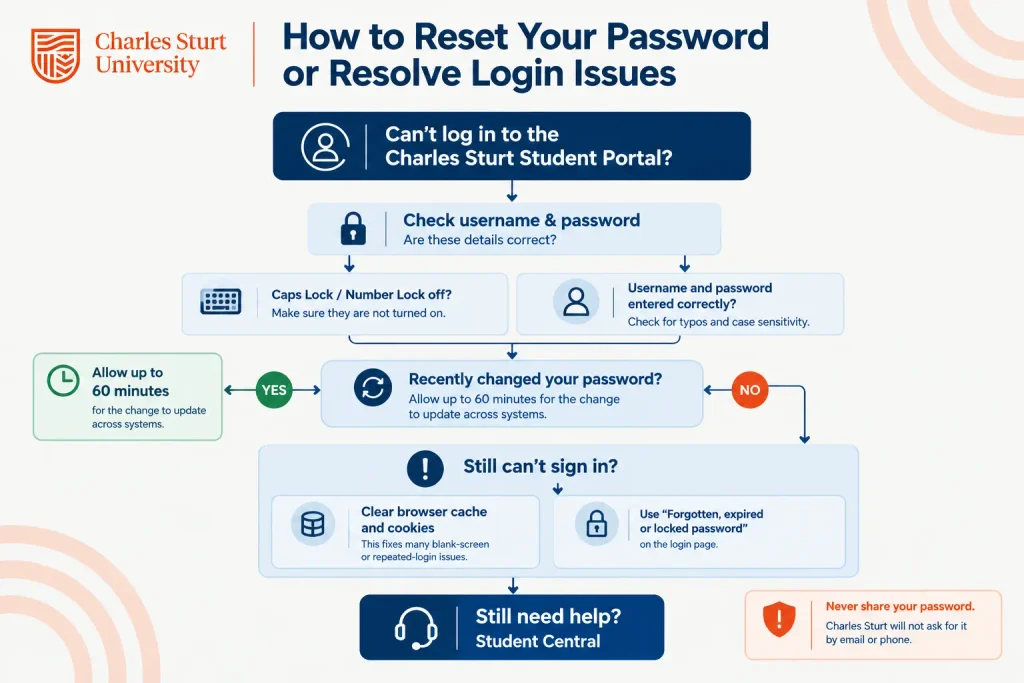
If you’ve just changed your password, allow up to 60 minutes for it to update across all systems. Try your old password during that window if the new one doesn’t work yet. Clearing your browser cache and cookies also fixes many blank-screen or repeated-login issues.
To reset a forgotten password, use the “Forgotten, expired or locked password” link on the login page. For security, change your password every 120 days, and never share it with anyone, Charles Sturt will never ask for it by email or phone.
What You Can Do in the Student Portal
The student portal is your personalised dashboard for everything related to your enrolment. It pulls together academic records, administrative tools and course-specific links so you don’t have to search multiple systems for routine tasks.
View Your Academic Information and Personalised Updates
Your results, calendar and timetable are all visible from the portal dashboard. It also displays personalised updates relevant to your enrolment, so the information you see reflects your specific course and study period rather than generic announcements.
Manage Enrolment, Classes and Administrative Tasks
Use the portal to manage your fees, adjust your subject enrolment and submit administrative requests through built-in forms. You can also chat live with support staff directly from the portal, which is handy if a question comes up while you’re already logged in.
Find Information for Your Courses
The portal links out to course-specific resources, including your handbook and subject enrolment tools, so you can check requirements without leaving your dashboard. This is useful when you’re planning subject choices for an upcoming session and need to confirm your course structure quickly.
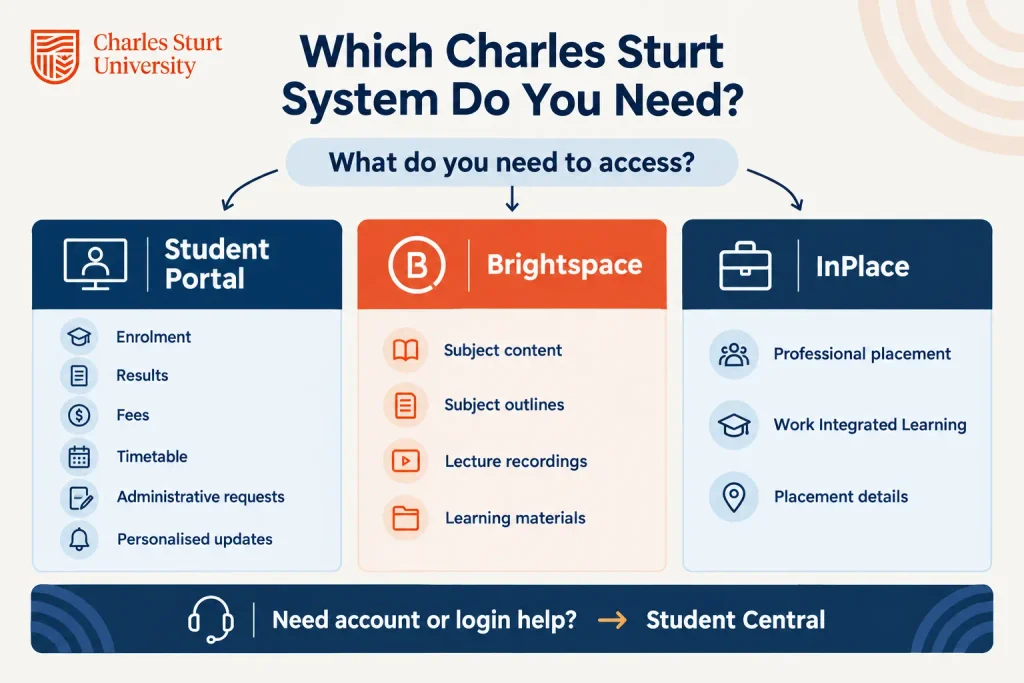
Which Charles Sturt System Do You Need?
Charles Sturt runs several student systems, and each one serves a different purpose. Knowing which one to open saves time, especially if you’re trying to find subject content, book a placement, or resolve an account issue.
Student Portal vs. Brightspace
The student portal handles enrolment, results, fees and personalised administrative tasks. Brightspace is the learning management system where subject content actually lives.
| Feature | Student Portal | Brightspace |
|---|---|---|
| Purpose | Enrolment and self-service | Subject learning materials |
| View results | Yes | No |
| Subject outlines | No | Yes |
| Lecture recordings | No | Yes |
| Manage fees | Yes | No |
| Live chat support | Yes | No |
If you’re looking for a reading list or a recorded lecture, go to Brightspace. If you’re checking a fee or your timetable, use the student portal.
When to Use InPlace for Professional Placement
InPlace is the system used for professional placement and Work Integrated Learning activity, separate from both the student portal and Brightspace. Students completing placement-based courses use InPlace to manage placement details relevant to their course. Check your course handbook or contact your Course Director if you’re unsure whether your course requires InPlace access.
How Student Central Can Help
Student Central is your first point of contact for account, enrolment or general support questions that the portal itself can’t resolve. You can reach Student Central by phone, online chat, email, or in person at select campuses. It’s also who you contact if you suspect someone has accessed your account without permission.
Using the Portal for Study and Administration
The student portal works alongside your handbook, key dates calendar and contact details to keep your study on track. Checking these regularly helps you avoid missed deadlines and ensures the university can reach you when it matters.
Finding Important Dates, Forms and Course Handbooks
Key student dates, including term breaks and exam periods, are available through the Current Students website and linked from the portal. Your course handbook is the official reference for your course structure, subject enrolment pattern and any Work Integrated Learning or Intensive School requirements. Follow the handbook from the year you started your course, since requirements can vary between commencement years.
Forms and documents for current students, covering everything from special consideration to enrolment changes, are also available through the essential information section of the Current Students site.
Keeping Your Contact Details and Notifications Current
Keep your contact details up to date in the student portal so you don’t miss important notifications about your enrolment or results. Outdated contact information is a common reason students miss deadline reminders or fee notices.
Accessing Support as a Sydney or Melbourne Campus Student
Sydney and Melbourne campus students access the same student portal as other Charles Sturt students. The Sydney Melbourne campus website has its own current students page with a direct portal link and campus-specific support information, including counselling and disability support services tailored to those campuses.
Getting the Right Help When You Need It
Contact Student Central first for any login, enrolment or account access issue you can’t resolve yourself. You can reach the team by phone on 1800 275 278 (or +61 800 275 278 from overseas), through online chat, by email, or in person at campuses including Bathurst, Wagga Wagga, Albury-Wodonga, Dubbo, Orange and Port Macquarie.
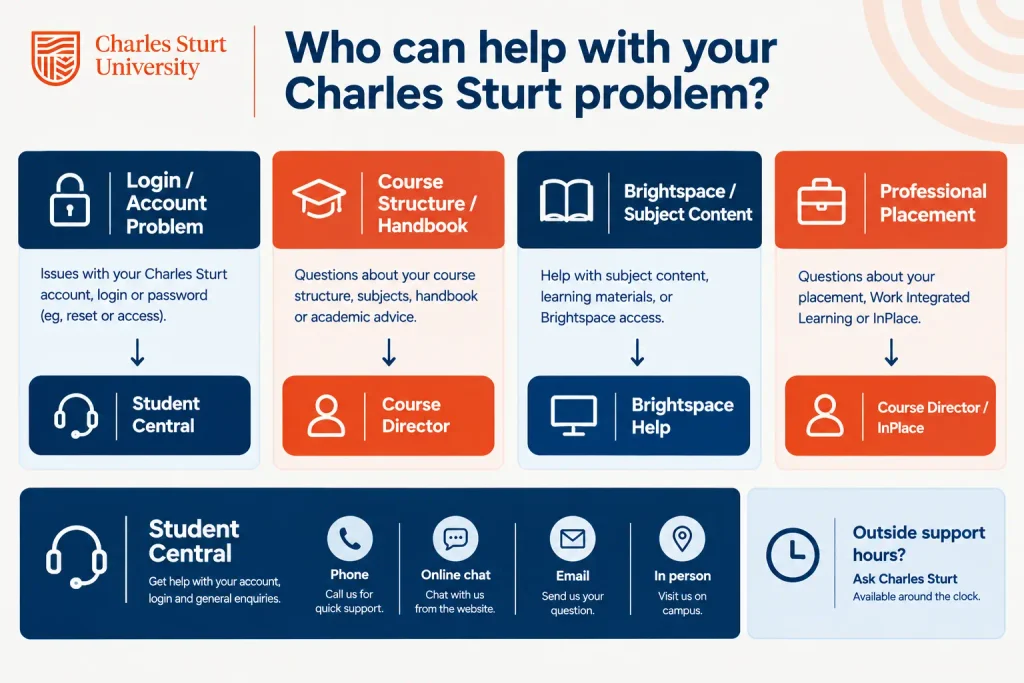
Phone and in-person support run Monday, Wednesday, Thursday and Friday from 9am to 5pm AEST, and Tuesday from 9.30am to 5pm AEST. For quick answers outside these hours, search Ask Charles Sturt, the university’s FAQ tool, which is available around the clock.
If your issue relates specifically to subject content or Brightspace, video tutorials and FAQs are available through the Brightspace help pages. For course structure or handbook questions, your Course Director is the right contact. Keeping these contact points in mind means you’ll spend less time searching and more time getting your issue sorted.